
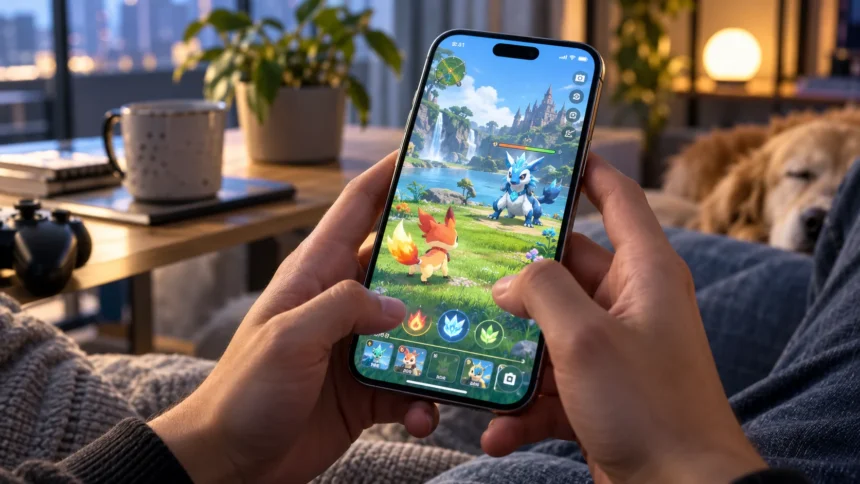
Playing Pokémon on an iPhone is easier than it used to be because there are now several ways to enjoy the franchise on iOS. You can download official Pokémon games directly from the App Store, or use compatible emulator apps to play certain classic titles when you legally have the required game files. The best option depends on which generation of Pokémon you want to play.
Modern Pokémon apps offer the simplest experience, while emulation appeals to players who want older Game Boy, Game Boy Color, Game Boy Advance, or Nintendo DS-era adventures. Before getting started, it is important to understand how each method works, what files may be required, and how to keep your device and data safe.
Can You Play Pokemon on iPhone?
Yes, you can play Pokémon on an iPhone using several legitimate methods. Official Pokémon games and companion apps are available through Apple’s App Store, allowing you to install and play them like any other iOS application. These options are generally the easiest choice because they require no additional setup, game files, or emulator configuration.
Classic Pokémon games require a different approach because many older Nintendo titles were originally released for consoles such as the Game Boy and Nintendo DS. Compatible emulator apps can reproduce those older systems on an iPhone. You then provide legally obtained game files that the emulator can read, allowing classic games to run through modern touchscreen controls.
The exact games you can play depend on the emulator, your iPhone model, and the supported console generation. Older Game Boy titles usually require fewer resources than later handheld games. If you mainly want a quick Pokémon experience without technical setup, starting with an official App Store release is normally the most straightforward solution.
Play Official Pokemon Games From the App Store
The easiest way to play Pokémon on iPhone is to search the App Store for official Pokémon games. Several titles have been created specifically for mobile devices, offering experiences involving catching Pokémon, battling, collecting cards, puzzles, or strategic gameplay. Installation works exactly like downloading any normal application from the App Store.
Open the App Store and search for Pokémon, then carefully check the developer information before installing anything. Official applications should clearly identify the recognized publisher or developer connected with the Pokémon franchise. Avoid downloading imitation apps that use similar artwork, names, or descriptions but have no legitimate connection to the official games.
Mobile Pokémon games are usually designed around touchscreen controls, so they require little configuration. Some may need an internet connection, location services, or an online account depending on their features. Review permissions before allowing access and adjust notification or privacy settings if you prefer a simpler gaming experience.
Use an Emulator for Classic Pokemon Games
An emulator is software that allows one device to imitate the behavior of another gaming system. On an iPhone, a compatible emulator can reproduce older handheld consoles so classic Pokémon titles can run within an iOS app. Emulation itself is different from the game file, which normally needs to be imported separately.
Different emulators support different generations of Nintendo handheld systems. Some focus on Game Boy, Game Boy Color, and Game Boy Advance games, while others may also support Nintendo DS titles. Before choosing one, check which systems it supports so you do not waste time installing an emulator that cannot run the Pokémon game you want.
Emulator apps can offer useful features that original handheld consoles did not have, including save states, customizable controls, fast-forward options, and controller support. These features can make older Pokémon games feel more convenient on a modern smartphone. However, compatibility varies, so some games may perform better than others depending on the emulator and iPhone.
Choose the Right Pokemon Emulator for iPhone
Start by deciding which Pokémon generation you want to play. Game Boy and Game Boy Color games need an emulator supporting those platforms, while Game Boy Advance or Nintendo DS games require broader compatibility. Choosing based on the original console is much more reliable than installing random emulator apps and hoping the game works.
Look for an emulator with a clear interface, reliable save functionality, touchscreen controls, and support for importing your own game files. Optional features such as fast-forward, controller compatibility, cloud synchronization, and multiple save states can make long Pokémon adventures more enjoyable. Avoid applications asking for unnecessary permissions or promising large collections of copyrighted games already included.
For beginners, simplicity is usually more valuable than having dozens of advanced settings. A clean emulator that reliably opens your legally obtained games, remembers your saves, and provides comfortable controls is enough for most players. Once you become familiar with emulation, you can explore more advanced display, audio, and controller settings.
Get Pokemon Game Files the Legal Way
Emulator applications normally do not include commercial Pokémon games. To play a classic title, you typically need a compatible game file created from a game you legally own, where making and using such a backup is permitted. Copyright and backup rules can differ between countries, so you should follow the laws that apply where you live.
Be cautious with websites offering free downloads of large collections of commercial Nintendo games. These files may be unauthorized, and unfamiliar download sites can also contain misleading advertisements, fake installers, trackers, or malicious files. Protecting your iPhone and accounts is more important than saving a few minutes looking for an unofficial download.
Once you have a legitimate game backup, store it somewhere accessible on your iPhone, such as the Files app or a supported cloud-storage location. Keeping your game files organized makes importing them into an emulator much easier. Good [mobile gaming](Add link here) habits also include backing up important save data before changing apps or moving files.
How to Import a Pokemon Game Into an Emulator
After installing your chosen emulator, open it and look for an import, add-game, or file-selection option. The exact wording varies between applications, but most allow you to browse files stored on your iPhone. Navigate to the folder containing your legally obtained Pokémon game file and select it to add the game.
Once imported, the title should usually appear inside the emulator’s game library. Tap the game to launch it and wait for the emulator to load the virtual console. If nothing happens, verify that the game file is supported and that you selected the correct emulator for the console on which the original Pokémon title was released.
Some emulators automatically organize games by platform or create artwork and titles for easier browsing. Others show only filenames, so giving your files clear names can help keep a larger library organized. Avoid renaming file extensions unless you know what you are doing, because changing the format incorrectly can prevent the emulator from recognizing the game.
Set Up Touch Controls for Better Gameplay
Most iPhone emulators place virtual buttons directly on the touchscreen to reproduce the controls of the original handheld console. You will normally see a directional pad alongside buttons such as A, B, Start, and Select. Nintendo DS-style emulation may also use the touchscreen itself for games that originally required stylus input.
Spend a few minutes adjusting the layout if your emulator offers customization. Increasing button size, moving controls closer to your thumbs, or changing screen orientation can make longer sessions significantly more comfortable. Landscape mode may provide a larger gameplay area, while portrait mode can sometimes recreate the proportions of a traditional handheld console more naturally.
Touch controls work well for slower Pokémon gameplay because the series does not usually require extremely fast reactions. However, accidental taps can still happen during battles or menu navigation. If you play frequently, customizing control transparency and spacing can make the screen easier to view while reducing mistaken button presses.
Connect a Controller to Your iPhone
A compatible Bluetooth controller can make classic Pokémon games feel closer to playing on traditional hardware. Many modern wireless controllers can connect through the iPhone’s Bluetooth settings and may work automatically with supported emulator applications. Physical buttons are particularly useful if you dislike touchscreen controls during longer gaming sessions.
To connect one, place the controller in pairing mode and open Settings on your iPhone. Go to Bluetooth, locate the controller in the available devices list, and complete the connection. After pairing, open your emulator and check its controller settings to verify that directional controls and buttons are mapped correctly.
Not every emulator supports every controller in exactly the same way, so test the setup before beginning a long session. If buttons behave incorrectly, look for controller mapping or input settings inside the emulator. Once configured properly, a physical controller can make exploring regions, managing Pokémon teams, and battling trainers much more comfortable.
Use Save States and Back Up Your Progress
Traditional Pokémon games contain their own built-in save system, and you should continue using it regularly. Emulator applications may also provide save states, which create a snapshot of the game at a specific moment. This allows you to return quickly to that exact position without relying entirely on the original game’s save points.
Save states are convenient, but avoid depending on only one method. Emulator files can sometimes become corrupted, deleted, or inaccessible after application changes. Maintaining both normal in-game saves and occasional save states provides additional protection, particularly after completing important battles, catching rare Pokémon, or making significant story progress.
If your emulator supports cloud backup or file exporting, consider backing up your save data periodically. This can be especially helpful before changing phones, reinstalling an emulator, or updating major software. Pokémon games often require dozens of hours to complete, so protecting your progress is worth the small amount of extra effort.
Improve Pokemon Emulator Performance on iPhone
Most recent iPhones can handle older handheld games without much difficulty, but performance can still vary depending on the emulator and console generation. If gameplay feels slow or audio begins stuttering, close unnecessary background applications and check whether your emulator provides performance settings. Lowering demanding graphical enhancements can sometimes create smoother gameplay.
Keep your iPhone reasonably updated because software compatibility can affect emulator behavior. Emulator developers may also release updates that improve stability or fix game-specific problems. However, before installing major app updates, make sure important save files are backed up in case the update changes how game storage or synchronization works.
Battery usage is another consideration during longer sessions. Emulation can consume more power than simple applications, particularly when higher-performance systems, Bluetooth controllers, or increased screen brightness are involved. Lowering brightness, disabling unnecessary background features, and taking occasional breaks can help extend battery life while keeping your iPhone from becoming excessively warm.
Stay Safe When Playing Pokemon on iPhone
Download emulator applications only from sources you trust. Avoid websites asking you to install unusual configuration profiles, unknown certificates, or unrelated applications before allowing access to a game. Suspicious installation methods may introduce privacy or security risks, especially when a website claims you must disable normal iPhone protections first.
Never enter your Apple Account password into a third-party website promising free Pokémon games or premium emulator access. Legitimate App Store installations use Apple’s normal authentication process rather than requesting account credentials through random webpages. Be equally cautious with sites asking you to complete surveys, install several apps, or provide payment information before revealing a supposed download.
Keep your iPhone protected with a passcode, Face ID or Touch ID, and current security updates. Gaming should not require compromising basic device protections. Using trusted applications, legitimate game files, and secure storage gives you a safer way to enjoy classic Pokémon titles without exposing personal information or your device to unnecessary risk.
Conclusion
Learning how to play Pokémon on iPhone starts with deciding whether you want a modern mobile Pokémon experience or a classic console adventure. Official App Store games provide the easiest setup, while emulators can offer access to older handheld-style gameplay when used with compatible, legally obtained game files.
If you choose emulation, select an app that supports the original console for your Pokémon game. Import your game file through the Files app, configure touchscreen controls or a Bluetooth controller, and use both regular saves and backups to protect your progress. Once everything is configured, playing classic Pokémon on an iPhone can feel surprisingly natural.
Most importantly, avoid questionable game-download sites and applications that request unnecessary access or account information. You do not need to weaken iPhone security just to enjoy Pokémon. Stick with trustworthy apps, legally obtained files, and sensible backups, and your iPhone can become a convenient device for both modern and classic Pokémon experiences.
FAQs
Can you play classic Pokemon games on an iPhone?
Yes. Compatible emulator apps can run certain classic Pokémon games on iPhone when you provide supported, legally obtained game files. Compatibility depends on the emulator and the original console generation.
Do I need an emulator to play Pokemon on iPhone?
Not always. Official Pokémon mobile games can be downloaded directly from the App Store. An emulator is mainly needed when you want to play compatible classic titles originally released for older handheld consoles.
Is it legal to use a Pokemon emulator on iPhone?
Using emulator software is different from obtaining copyrighted game files. Laws vary by location, so use legally obtained backups of games you own where permitted and avoid unauthorized commercial-game downloads.
Can I use a controller for Pokemon on iPhone?
Yes, many iPhone emulator apps support compatible Bluetooth controllers. Pair the controller through your iPhone’s Bluetooth settings and then configure button mapping inside the emulator if adjustments are needed.
Why is my Pokemon game not working on an iPhone emulator?
The game file may be unsupported, damaged, or intended for a different console than your emulator supports. Check the emulator’s system compatibility, verify the file, and update the app if necessary.